


Starting December 10, 2026: Manage Backlog Licenses for Individual Members
Hello from the Backlog Development Team!
Thank you for always using Backlog.
Starting Thursday, December 10, 2026, organization administrators will be able to individually manage which members can access Backlog.
Along with this update, the way Backlog counts the number of users will also change. Please review the “Important Notes” section before the release.
Overview of New Features
Backlog License Management
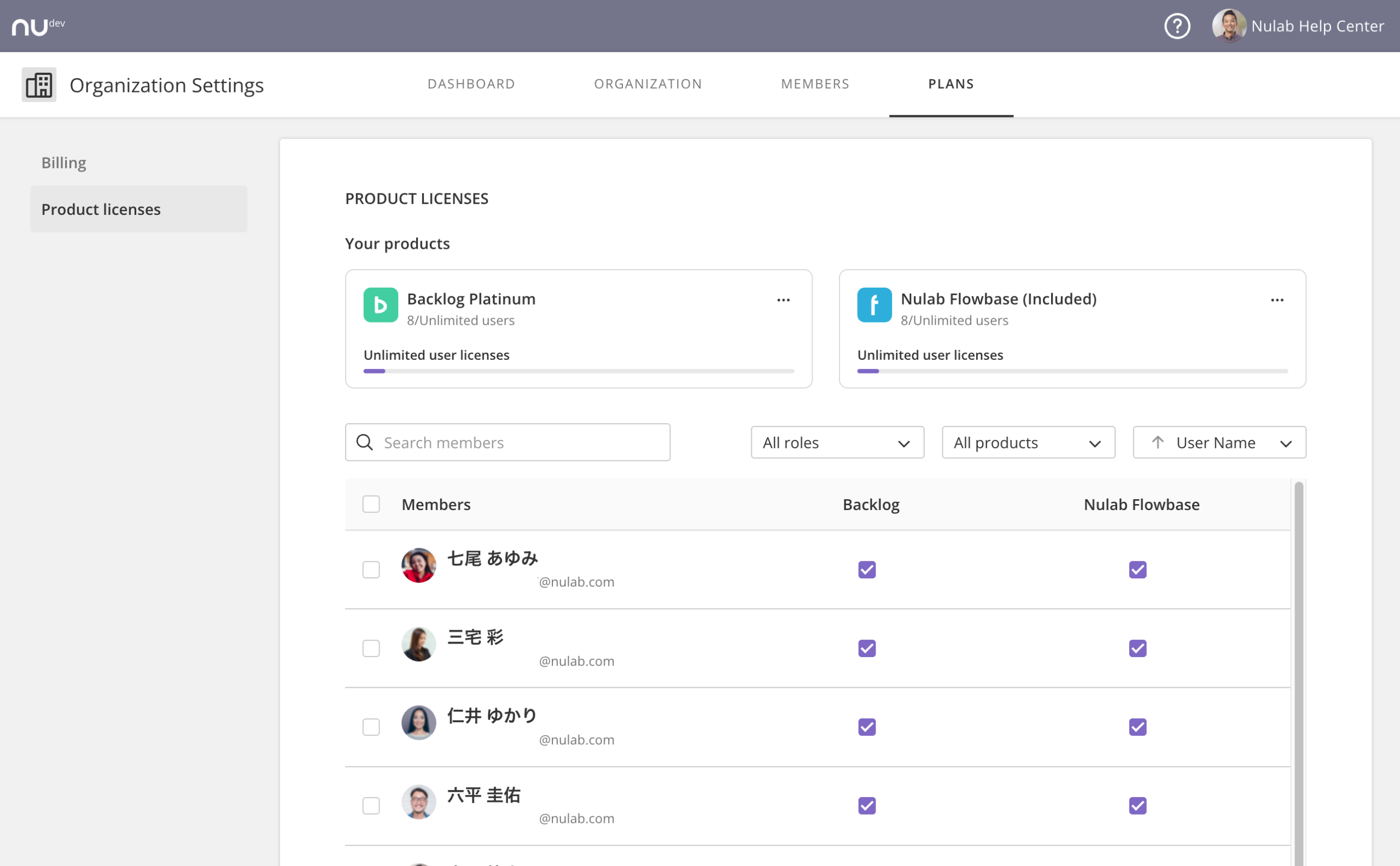
Organization administrators will be able to assign or remove Backlog licenses for individual members. You can manage this from the Product licenses screen under Plans in your Organization Settings.
You can also check your license usage and limits on the same screen.
License Assignment When Inviting or Creating Accounts
You can specify which licenses to assign when inviting members or creating managed accounts.
Changes to How Backlog Users Are Counted
The number of Backlog users will now be counted as the number of members assigned a Backlog license.
Release Date
Thursday, December 10, 2026
Background
Previously, Backlog did not have licenses. The number of Backlog users was counted as the number of people participating in at least one project.
Because of this, organization administrators could not check the following two details from the Organization Settings screen:
- Who has access to Backlog
- How many people are using Backlog compared to the plan’s limit
With this update, organization administrators can decide which members can use Backlog. They can also view license usage and limits in Organization Settings.
What You Can Do With This Update
- See who has access at a glance: View a complete list of who can use Backlog on the Organization Settings screen.
- Make the most of your user limit: Assign licenses only to members who need Backlog for their work. This keeps your plan’s user limit from going to waste and helps optimize costs.
- Take action before hitting your limit: A banner will notify you when your license usage approaches the limit. This gives you time to review assignments or consider upgrading your plan.
- Streamline onboarding and offboarding: Assign licenses when inviting members or creating accounts, so you don’t have to assign them individually afterward. When members change roles or leave the company, administrators can promptly remove their licenses.
How to Use
Once released, you can manage licenses as follows.
Assigning and Removing Licenses
- Open Organization Settings > Plans > Product licenses.
- In the member’s row, select the checkbox in the Backlog column to assign a license. Clear the checkbox to remove the license.
You can also select multiple members to assign or remove licenses in bulk.
When a license is assigned, the member will automatically receive an email notification. Administrators don’t need to contact them individually.
When a license is removed, the member will be logged out of Backlog. They can continue using other Nulab services as usual.
Setting Default Licenses for Invitations
In the invitation settings, you can choose which licenses to assign to people invited from Organization Settings. This applies to members invited by email, invitation link, or CSV bulk invitation.
- Open Organization Settings > Members > Member Invitation Settings.
- Select the licenses to assign when members join, and click Save.
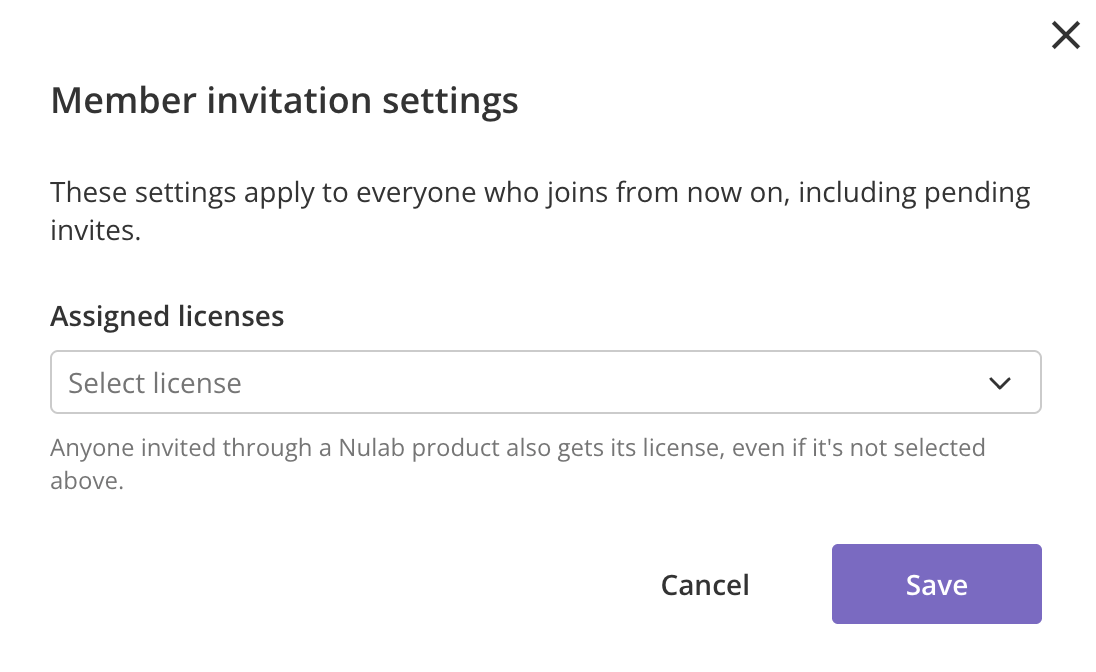
The invitation dialog will display the licenses that will be assigned when the member joins.
Assigning Licenses When Creating Managed Accounts
In the managed account creation dialog, select the licenses you want to assign. When creating accounts in bulk via CSV, specify the licenses in the Licenses column.
Eligible Plans and Requirements
- Applies to: All organizations using Backlog
- Assigning and removing licenses (including in bulk) and changing invitation settings: Organization Administrators
- Viewing license usage and limits: Organization Administrators and Plan Admins
- Checking history in the Audit Log: Organizations subscribed to Nulab Pass only. License assignments, removals, and changes to invitation settings are recorded.
The plans with user limits are as follows:
|
Plan |
Limit |
|
Free (Current Plan) |
10 |
|
Starter (Current Plan) |
30 |
|
Economy (New Plan from January 2027) |
15 |
|
Free (New Plan from January 2027) |
5 |
|
Standard and above |
Unlimited |
Important Notes
Please keep the following points in mind when using this feature.
Changes to How Backlog Users Are Counted
- Before: Number of people participating in at least one project
- After release: Number of people assigned a Backlog license
Guests are each counted as one user. So are administrators and Plan Admins who do not participate in any projects. As a result, organizations that were within their plan’s limit may exceed it under the new counting method.
Before the release, please check the number of members in your organization and your plan’s limit.
For Organizations Already Using Backlog
All members of your organization at the time of the release will automatically be assigned a Backlog license. Administrators do not need to take any action to migrate. No emails or notifications will be sent for this automatic assignment.
If your organization already exceeds the user limit at the time of release, existing members will keep their licenses. However, you will not be able to assign new licenses until your usage drops below the limit. As needed, remove licenses from members who no longer use Backlog, or consider upgrading your plan.
Approaching or Reaching the License Limit
- You cannot assign licenses beyond your plan’s limit.
- When usage reaches 80% of the limit, a banner will appear. The banner shows the number of remaining licenses and upgrade options.
- When usage reaches the limit, an upgrade prompt will appear. An email will also be sent to organization administrators.
Downgrading Your Plan
You will receive an email when you schedule a downgrade, and again 7 days before the change date. The email asks you to remove licenses before the change date. If usage still exceeds the new limit on the change date, licenses will be removed automatically, starting with the most recently assigned, until usage meets the limit.
Licenses for New Members
- Invited from Backlog: Will always be assigned a Backlog license, just as before.
- Invited from Organization Settings: Follow your invitation settings.
- Managed accounts: Follow the settings specified during creation.
- Accounts created via SCIM: Licenses are not assigned. Please assign them from the Product licenses screen.
If a license cannot be assigned because your organization has reached its limit, both the member and organization administrators will be notified by email.
Members Without a License
Members without a license cannot log in to Backlog. They will be returned to the Organization Dashboard with a message stating that a license is required. If they need access, they should ask an organization administrator.
In addition to logging in, members without a license will not be able to use the following:
- Mobile apps
- API keys
- Git / Subversion / WebDAV
- RSS / iCal
- Adding issues via email
If any integrations or external tools rely on these features, please check them before removing a member’s license.
Accounts Not Yet Migrated to a Nulab Account
Organizations that migrated from the Classic Plan may still have Backlog accounts that have not been migrated to a Nulab Account. These accounts cannot hold a license.
After the release, these users can still log in from a web browser as usual. However, the following will no longer be available:
- Mobile apps
- API keys
- iCal URLs with a secret key
- Git over SSH
- Adding issues via email
- When “Assign reporter from sender’s email (From)” is enabled and the sender has not migrated to a Nulab Account
- When the issue reporter is fixed to a user who has not migrated to a Nulab Account
Once an account is migrated to a Nulab Account, these features become available again. However, licenses are not assigned automatically to accounts migrated after the release. An administrator will need to assign a license after migration.
We encourage you to take this opportunity to review your accounts and migrate them to Nulab Accounts.
Removing Members from the Organization or Deactivating Accounts
If a member is removed from the organization or their account is deactivated, their license is automatically removed. If the account is reactivated later, the license will not be restored automatically.
Conclusion
In this post, we announced that you will be able to manage Backlog licenses for individual members. We hope this feature helps your organization manage access to Backlog.
The Backlog Development Team will continue making improvements to make your work more enjoyable and smoother.
If you have any questions, please contact us via our Contact Form.
Until next time, Happy Backlogging!